Panel Pop is 26 customizable Final Cut Pro X transitions that breaks your video into panels and animates to reveal the incoming clip. If you need help with Panel Pop this guide is your best friend.
Common Controls
Many templates have the same controls including the custom controls below. The following are common controls.
Panel Guide
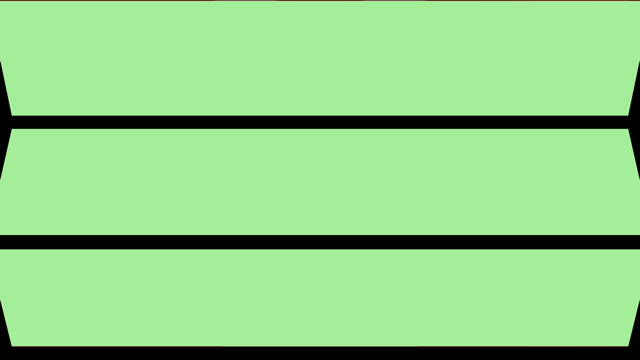
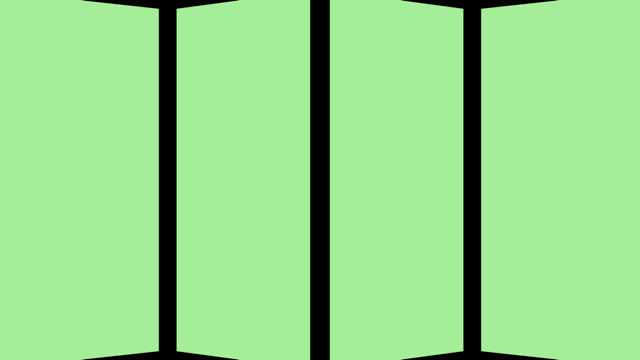
When you’re creating your own animations use this checkbox to turn on the Panel Guide. The guide will show panel numbers to make it easy to change panel controls.

3 Panels Guide

4 Panels Guide
Presets
Choose a preset animation to save time or Custom to create original transitions. Panel Pop has 348 presets!

Panel Pop Presets
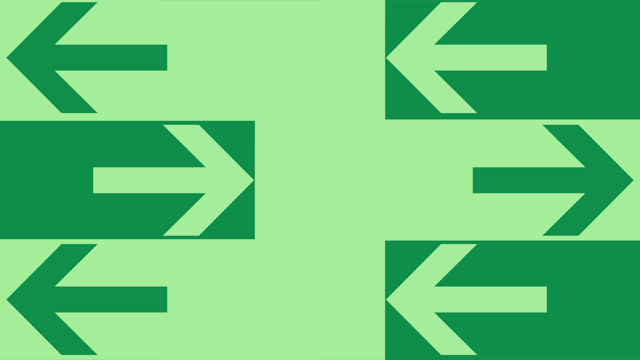
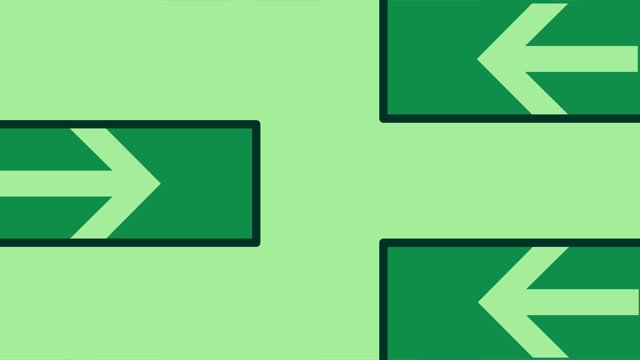
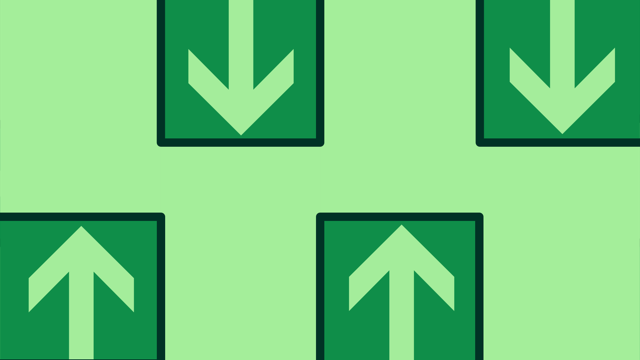
▲ = Up | ▼ = Down | ◀ = Left | ▶ = Right
For example, ◀▲▼▶ means Panel 1 animates left, Panel 2 animates up, Panel 3 animates down, Panel 4 animates right.
Line On/Off
Use this to turn a “cutting” line on or off. The cutting line animates on in 5 frames and then fades out in 5 frames.

- Panel Pop Lines
Line Color
Use this color picker to pick your nose color.
Line Width
Drag the slider to the right to make the line thicker. Drag it to the left to make it thinner.
Line Direction
You can use this drop down menu to change the line animation direction.
Background
Use this to select a transparent or solid color background.
Background Color
Use this to select your favorite background color. It’s Blue. No, yel… Ahhhhhh!
Custom Controls
Use the following controls to create your own transitions. Make sure that Custom is selected in the Presets drop down.
Panel Transition Type
Select which clip you want to move or animate for each panel. Transition A is the outgoing clip and Transition B is the incoming clip.

Transition Type
Panel Direction
Use this to select the panel animation direction. Most template’s panels move up, down, left or right. Paddle Wheel templates’ panels move forward or backward and Peel templates’ panels move left to right or right to left.
Panel Motion
Use this to select one of two animated motions. Smooth is an even motion and Bounce bounces into place.
Panel Timing
Use this slider to adjust the timing of the panels’ movement. Move it to the left to and the motion happens earlier in the transition. To the right causes the motion to happen later in the transition. The slider is measured in frames.
Panel Timing
Template Specific Controls
Some templates have unique controls.
Squiggly
This control is in Draw 3 and 4 templates gives the drawn lines movement as they animate on.
Panel Hinge
This control is in Hinges 3 and 4 templates. This control allows you to select where you want the panel hinge. Direction depends on hinge location and transition type.
Panel Axis
This control is in Paddle Wheel 3 and 4 templates. Use this to select left or right rotation axis.
Peel 3 and 4 Controls
Peel 3 and 4 templates have several unique controls so they get there own section.
Panel Shadow
Move to the left for less shadow and to the right for more shadow.
Panel Fade
The panels can fade out during animation. Move to the left for no fade and to the right for fade out.
Highlight Color
Use this to tint the back of the panel as it peels.
Back Color
Turn the back of the panel into a solid color as it peels.
Panel Radius
You can change the peel’s radius. Move the slider to the left to reduce radius and to the right to increase radius.
Need More Help
If you need more help, send me (Dylan) a message.